Reviewing the Purchase Order Activity Summary Page
In OAKS PO, you can review activity information about your purchase order, such as receiving, invoicing, and matching details.
At the end of this topic, you will be able to display and review activity information for a specific PO using the following tabs:
- Details
- Receipt
- Invoice
- Matched
- Return To Supplier
- Line Details

In this example, you previously entered a requisition for document shredding services. OAKS sourced this requisition to a purchase order. You need to review the key information on the activity for this PO.
Step-by-step:

Enter your desired search criteria.
Click the Search button.
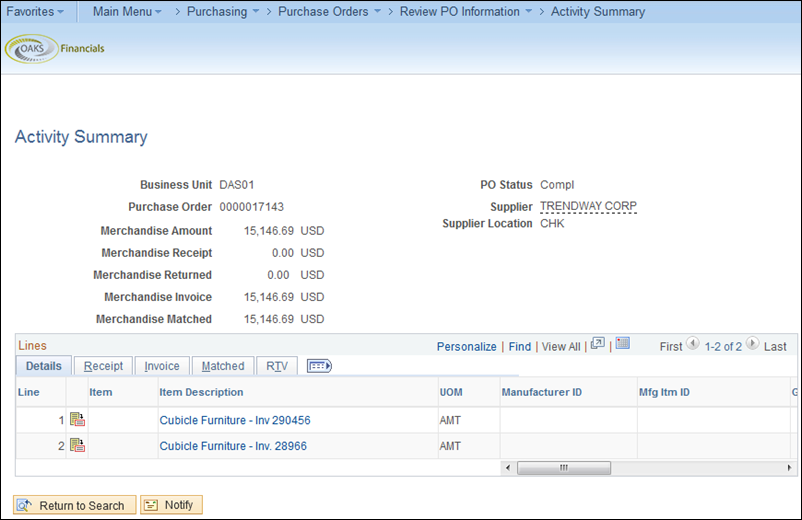
- Use the Activity Summary page to review various types of information describing Purchase Orders.
- If a purchase order contains more than one type of item, OAKS displays a row for each item. For example, pens on row one, pencils on row two and pads of paper on the third row.
- Review the following key information on the Details tab:
- The Item field displays the item's unique Item ID number.
- The Item Description field displays an explanation of the item ordered.
- The UOM (Unit of Measure) field displays the measuring unit used to quantify the purchase order, such as EA = each, BX = box, etc.
- The Order Qty (Quantity) field displays the number of units of the ordered item.
- The Amount Ordered field displays the total cost of the units ordered.
- Click the Receipt tab.

- On the Receipt tab, you can review the number of items received and accepted from the supplier.
- The Amount Received field displays the number of this item received from the supplier.
- The Open Quantity and Open Amount fields display the number of this item you have yet to receive.
- Click the Invoice tab.
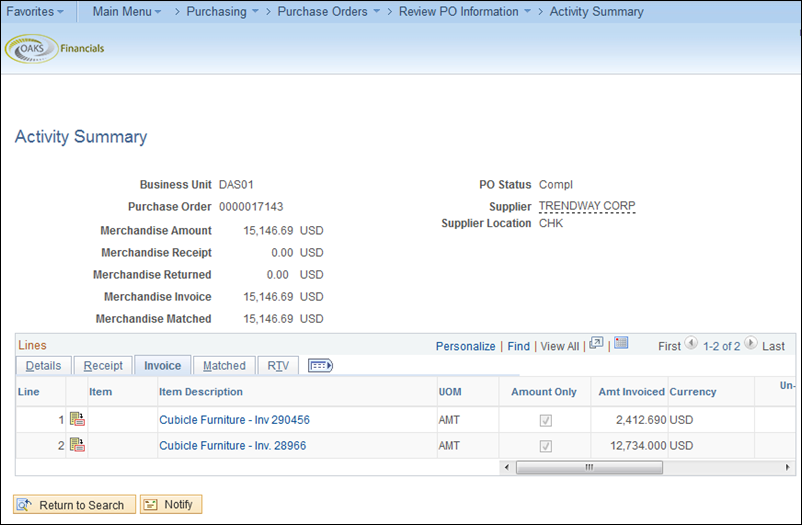
- On the Invoice tab, you can review the quantity or amount invoiced (vouchered) against the PO.
- The Quantity Invoice field displays the number of items invoiced.
- The Amount Invoiced field displays the total cost of the items invoiced.
- Click the Matched tab.

- Use the Matched tab to review the Qty Matched and Amt Matched fields.
- The Qty Matched field displays the number of items that have been matched to the voucher and receipt (if used) to the PO line.
- The Amt Matched field displays the total cost of the goods that have been matched to the voucher and receipt (if used) on the PO line.
- Click the Line Details
icon
 to
view the information a different way.
to
view the information a different way.
- Use the Details for Line 1 page to see the information previously discussed (i.e. Receipt, Invoice, Matched and RTV) on one page.
- Click the Expand All link to see all purchase order activity information.