Revised: 09/10/2021
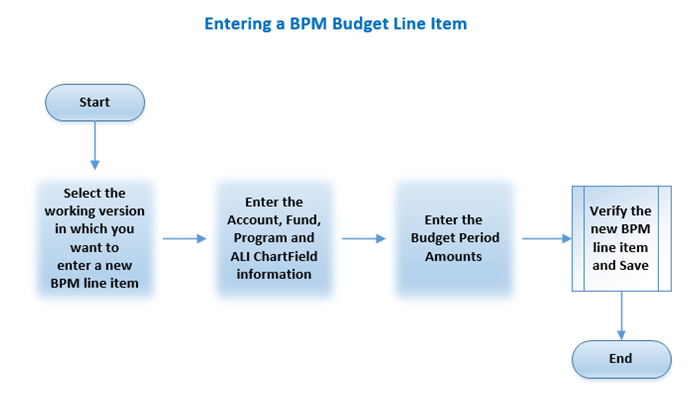
The foundation of creating an agency budget request is entering ChartField strings (i.e., Fund, ALI, Department, Program, Service Location, Project Type, Priorities, and request amounts) in BPM line items. Another critical activity for the budget is checking the ChartField combination for each line item.
The Add Line Item page can be used to add a line item (ChartField string) to a working version of the budget.
The Preparer is ready to provide the AGYCAP budget for an agency.
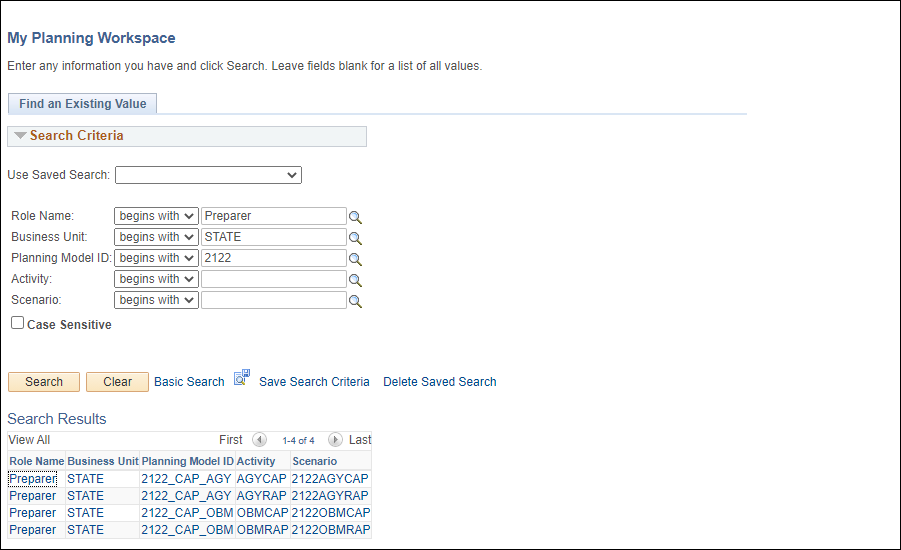
Enter or select "Preparer" in the Role Name field.
Click Search.
Search Results displays a list of all models available to someone with the specified role.
Click the Scenario that has a version to which a line item (ChartField string) should be added.
The My Planning Workspace page displays the planning center budgets for that model.
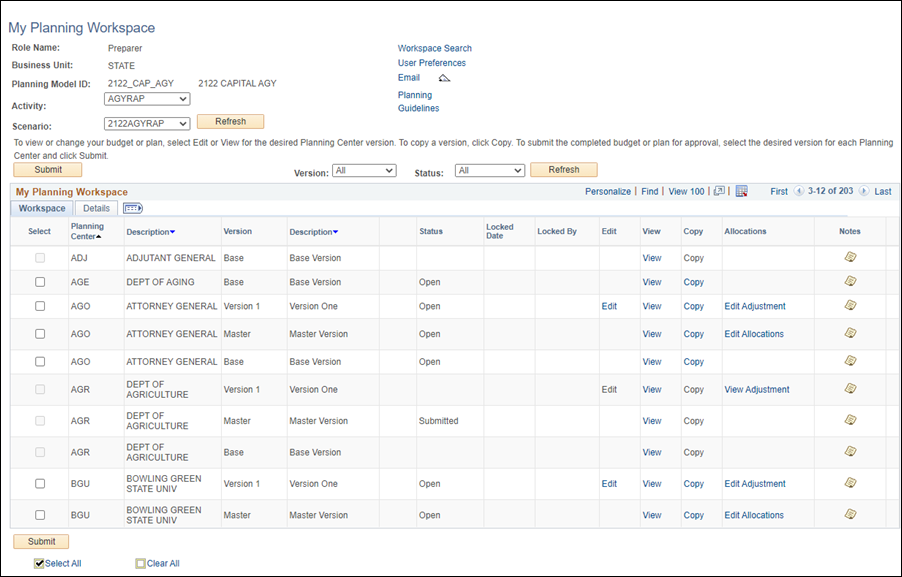
This page can be accessed by another link once in the application; one of the possibilities is by clicking the My Workspace link.
Click the Edit link on the line item of the version to be edited.
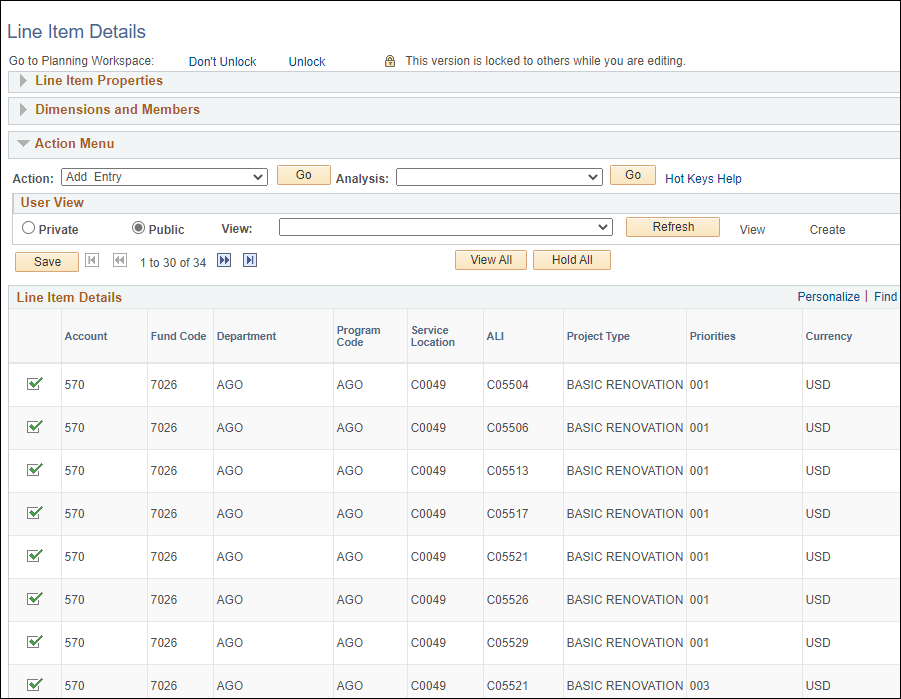
The Line Item Details page displays, with the notice, "This version is locked to others while you are editing."
Verify that "Add Entry" is selected in the Action dropdown field.
Click Go.
The Add Line Item page displays, with information about the current version displayed in the header.
The new line item (ChartField string) will be added only to this planning center version of the budget.
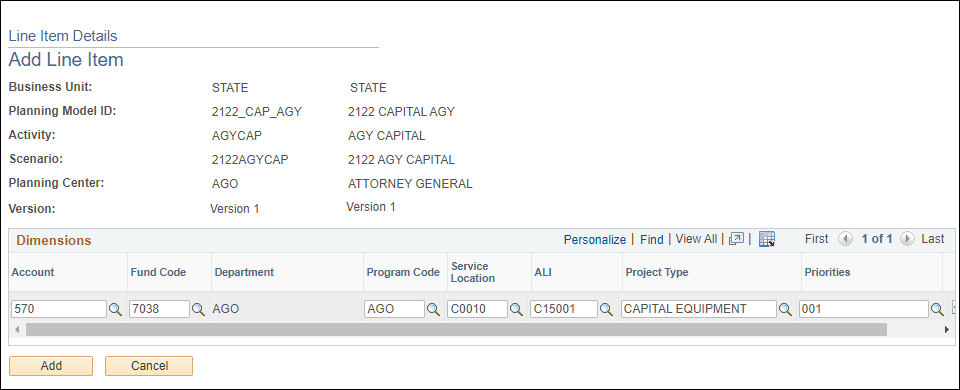
Enter an Account code for the line item (ChartField string) to be created. For capital budgeting, the Account will always be "570."
Click the "Look Up" icon (magnifying glass
 ) beside each field to
see all available account codes, even those that were not used in
the previous biennium. Click on a value within this Look Up window to complete the field.
) beside each field to
see all available account codes, even those that were not used in
the previous biennium. Click on a value within this Look Up window to complete the field.
Select a Fund code.
Select a Department.
Select a Program Code. For capital budgeting, the Program Code will almost always be the same as the Department. The only exception to this is colleges/universities, where the Program Code will be "UNI."
Select a Service Location.
Select an ALI (Appropriation Line Item).
Select Project Type.
Select Priorities.
To add additional
rows, click the Add a New Row icon: 
To remove a row that
was started but needs to be deleted, click the Delete Row icon:  (The icon will not
remove a line previously entered into the Line Item Details
page.)
(The icon will not
remove a line previously entered into the Line Item Details
page.)
Click Add.
The line item (ChartField string) is added to the Line Item Details page.

Click the Zoom icon.

Enter budget amounts.
Users can create a personalized view rearranging the column display for easier use. See Personalize View topic for directions.
Click Return. The ChartFields are added to the working version of this budget.
The amounts are added to the working version of this budget.
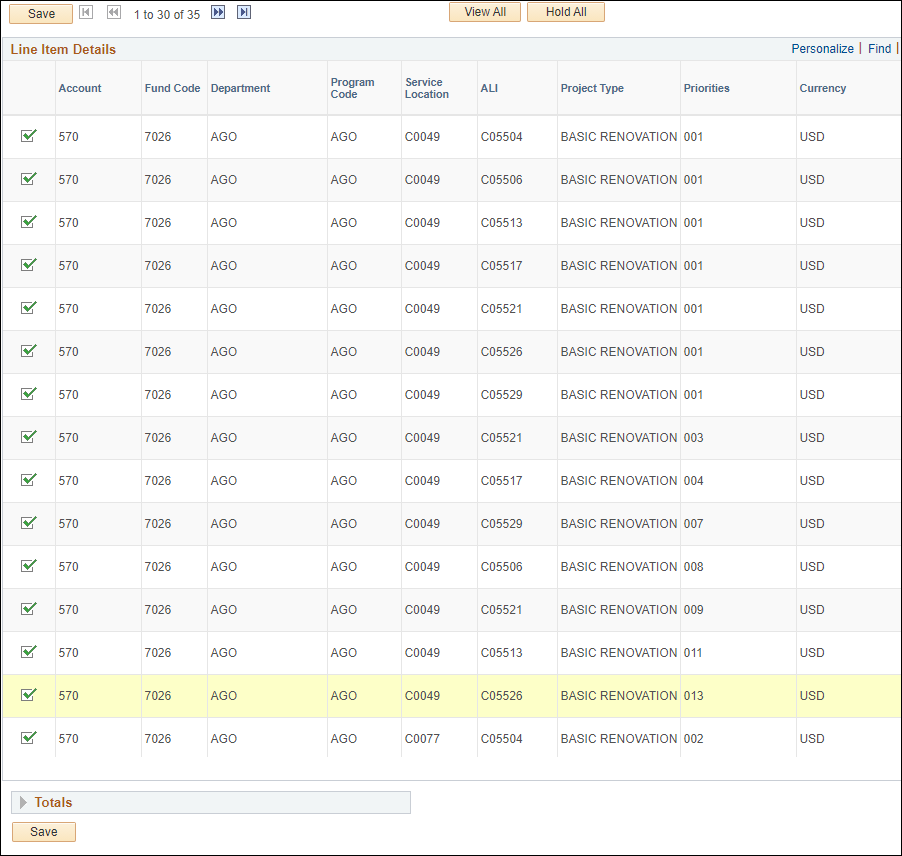
Click the Save button.
The line just updated is highlighted.
Click Unlock or Release, as necessary, for the desired version.